
4 KiB
Public Key Authentication
Public Key Authentication (PKA) is a mechanism to authenticate a legit user without introducing any PIN. The authentication is performed by signing a challenge and checking the signature result.
- A Pico HSM #A contains a private key, whose public key will be used for authentication.
- The public key of #A is registered into a second Pico HSM #B.
- When a user wants to login into #B, #B generates a challenge that is passed to #A for signature.
- #A signs the challenge and returns the signature.
- #B verifies the signature against the challenge with the public key of #A, previously registered.
- If the signature is valid, #B grants access to the user.
This mechanism has no retry counter or PIN throttling, as no PIN is set up on the device.
To enable PKA, the device must be initialized beforehand. In case the device has secret/private keys, all shall be exported and reimported when the set up is finished.
Requirements
To take advantage of PKA, the following is required:
- Two Pico HSM: one will be used only for authentication (it can be any device able to generate a private key and sign arbitrary data).
- SCS3 tool to authenticate the user. At this time, OpenSC does not support PKA.
- A secret key of ECC 256 bits. SCS3 does not support other curves.
Usage
Before using SCS3, it must be patched scs3.patch.txt. See SCS3 for further details.
Generate the authentication key
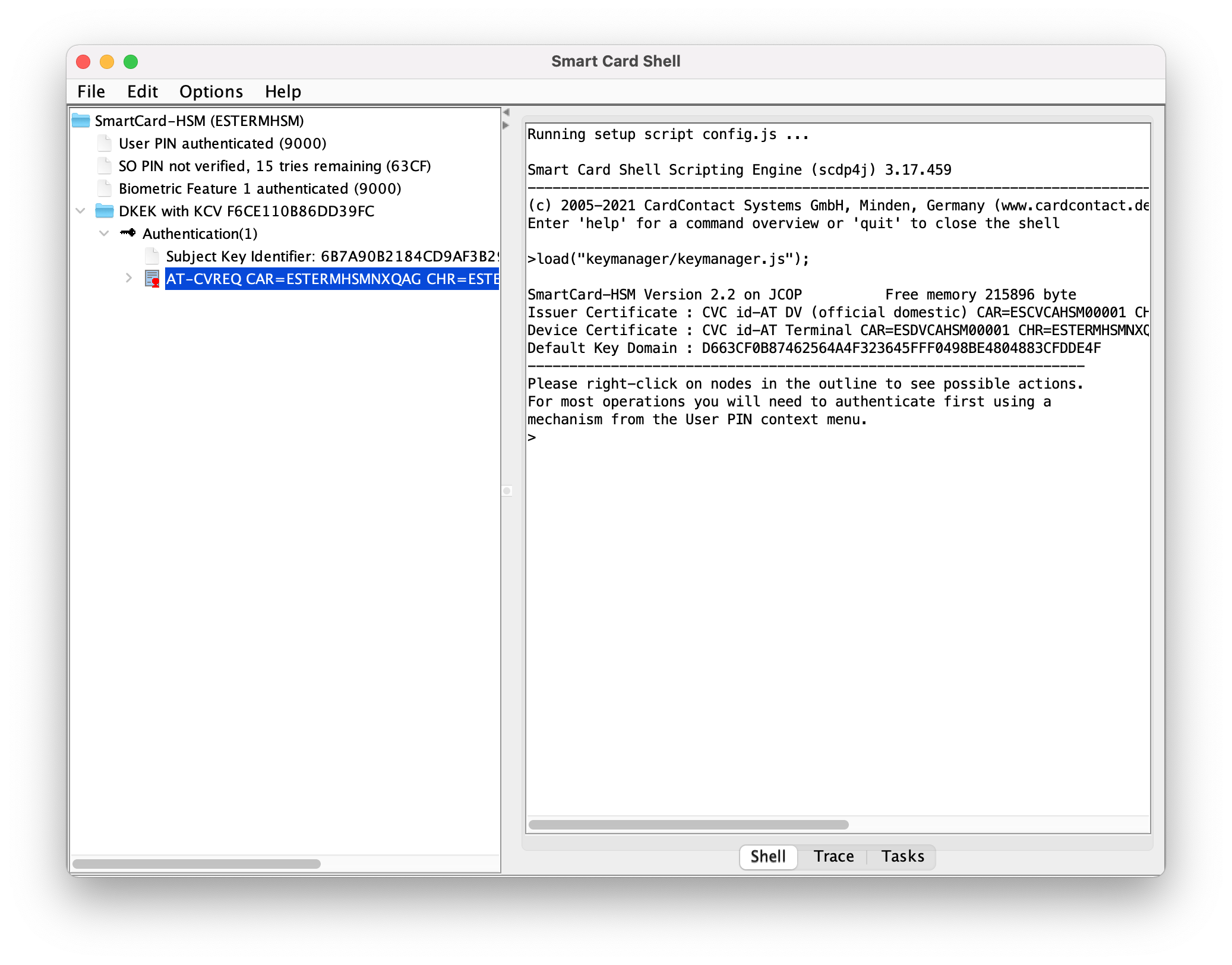
On a secondary device, generate a private key, on the ECC 256 bits (brainpoolP256r1 or secp192r1). Label it with an easy name, such as "Authentication".
Once finished, export the public key.
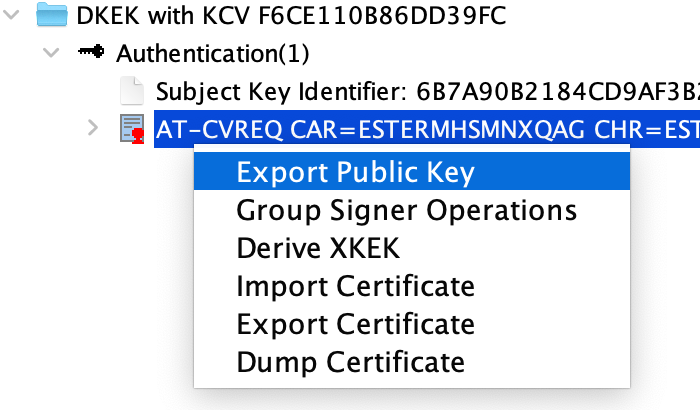
Initialization
On the primary device, initialize it. When prompting for an authentication mechanism, select "Public Key Authentication".
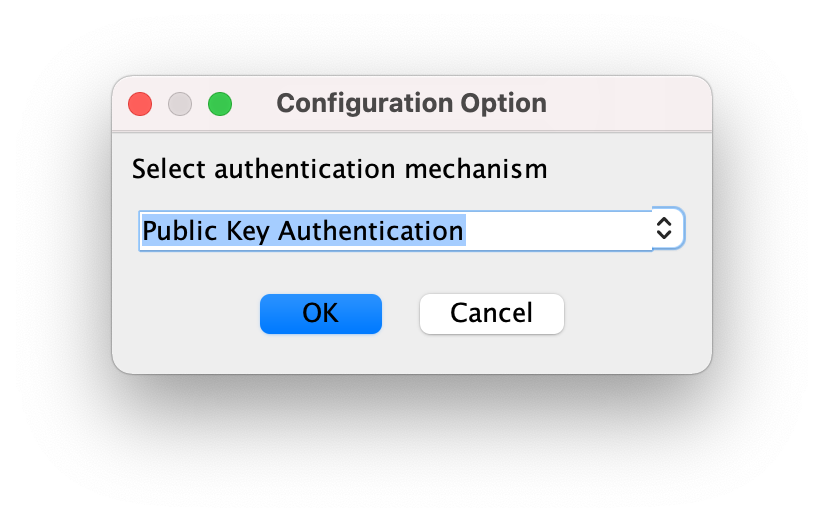
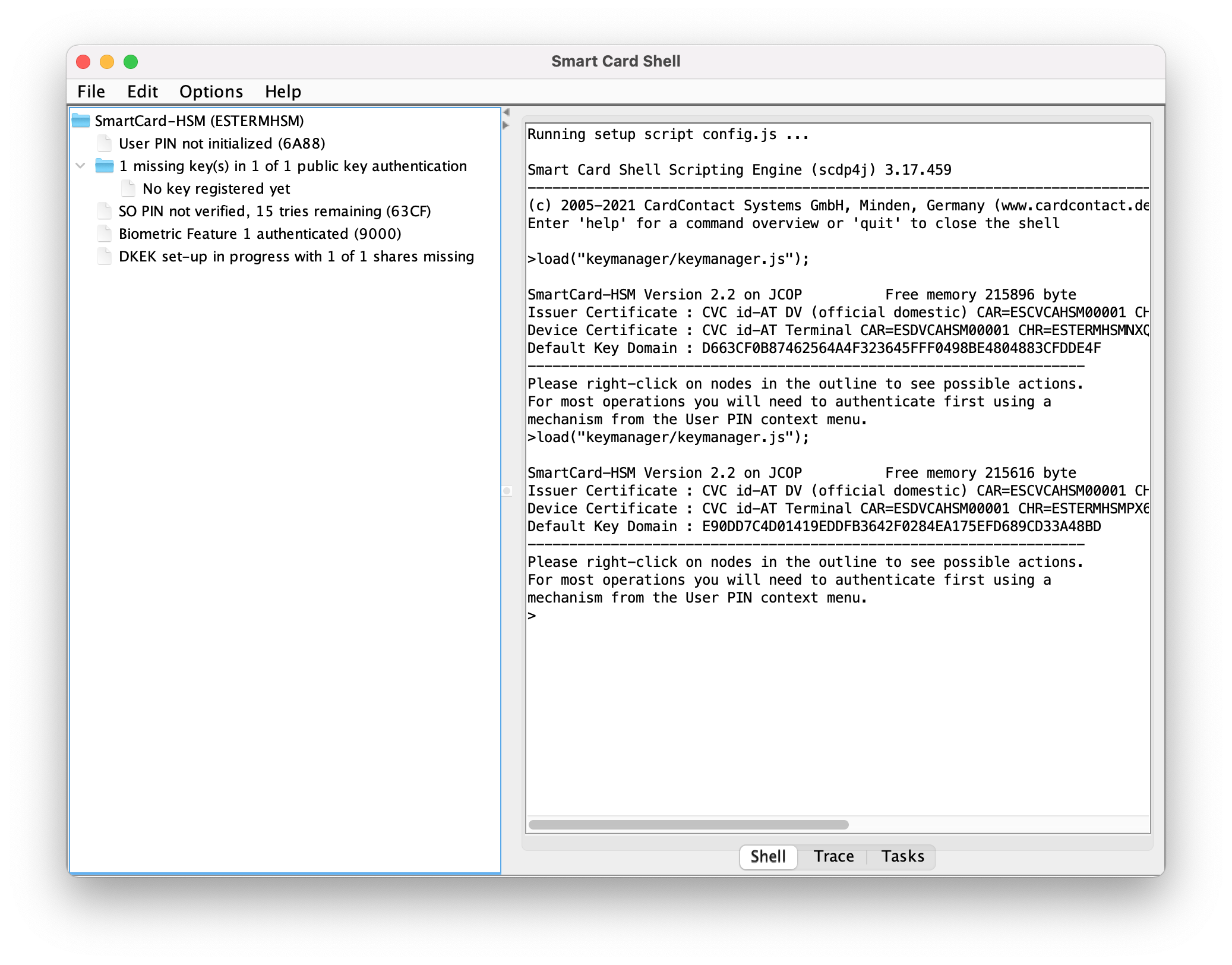
Once finished, register the exported public key. A message of 0 authenticated public key(s) in 1 of 1 scheme will appear if it is properly registered.

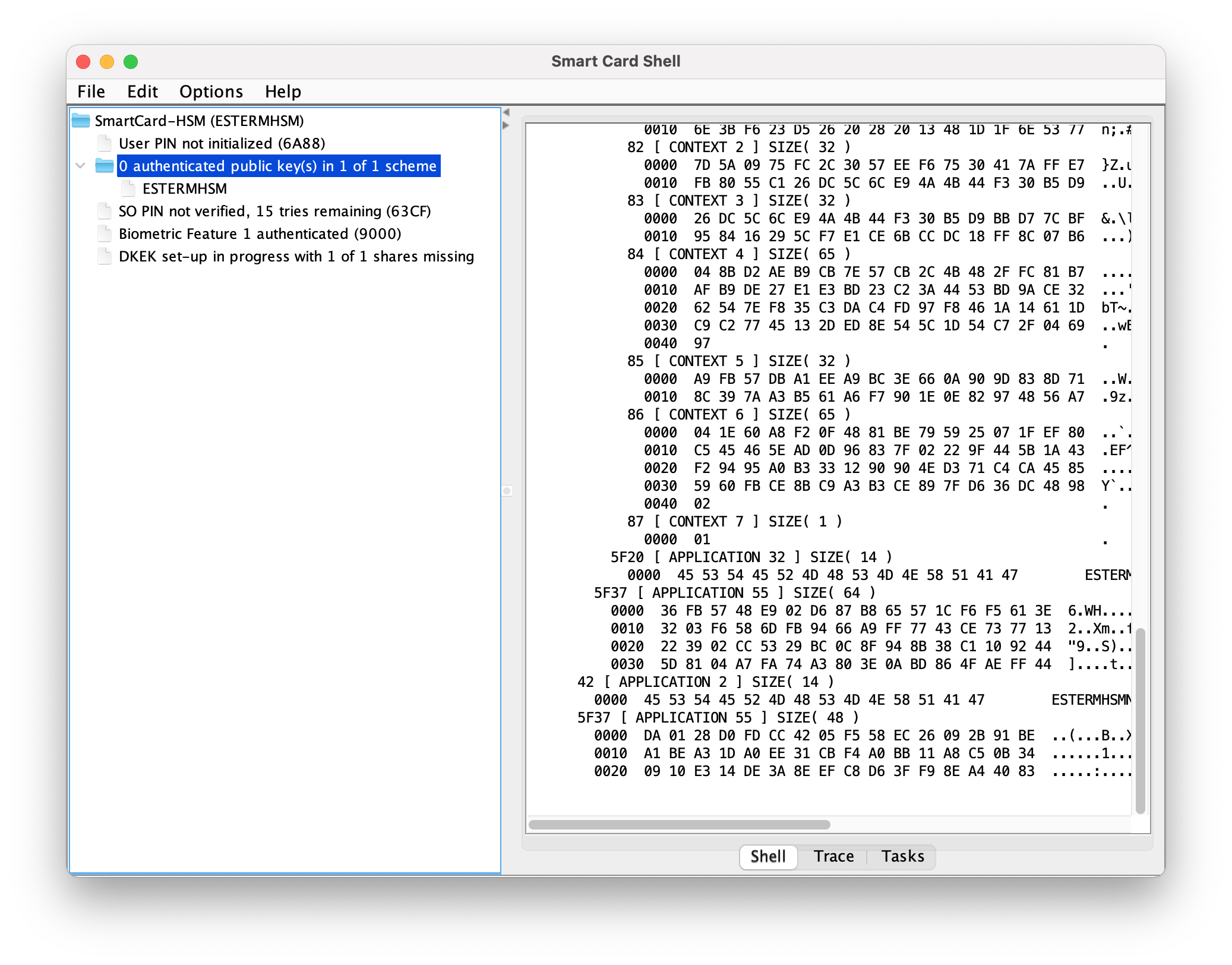
Authentication
Plug the secondary device that stores the private key (do not load the device in the SCS3 tool) and initiate the public key authentication.

Select the secondary card and the Authentication private key (or the name you labeled it).
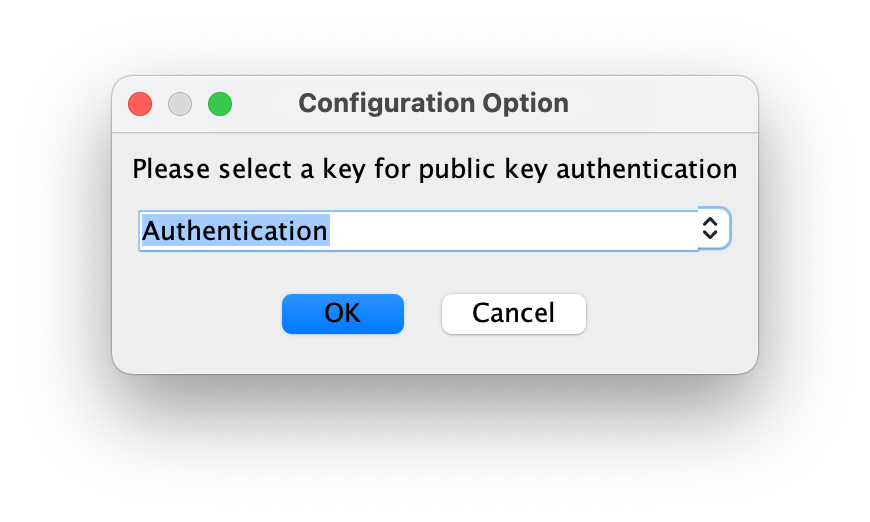
Introduce the PIN of the secondary device.
If the private key matches with the registered public key, the primary device will grant access and it will display User PIN authenticated (9000) (despite no PIN is provided).
From now on, you have full access and can operate normally with the primary device.